

Introduction
OpenAI Agent Builder is a visual canvas for creating multi-step agent workflows. With its drag-and-drop interface, you can design complex agent workflows, test them with live data, and export production-ready code. Portkey seamlessly integrates with Agent Builder’s exported code, adding enterprise features like:- Complete observability of your agent workflows
- Cost tracking across all agent executions
- Reliability features like fallbacks and retries
- Access to 1600+ LLMs through the same interface
- Guardrails for safe and compliant agent behavior
Quick Start
Design Your Workflow in Agent Builder
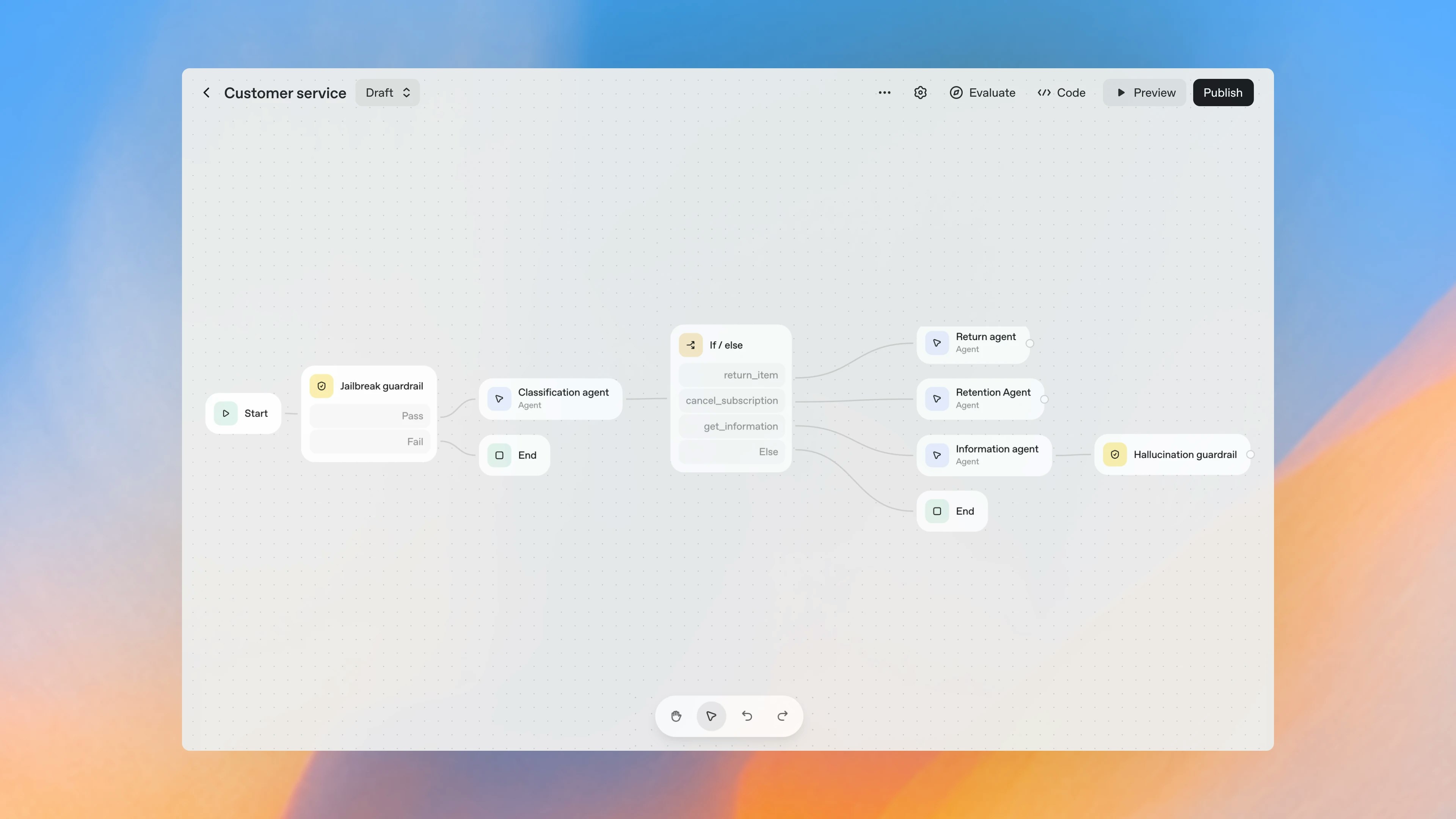
Export Your Code
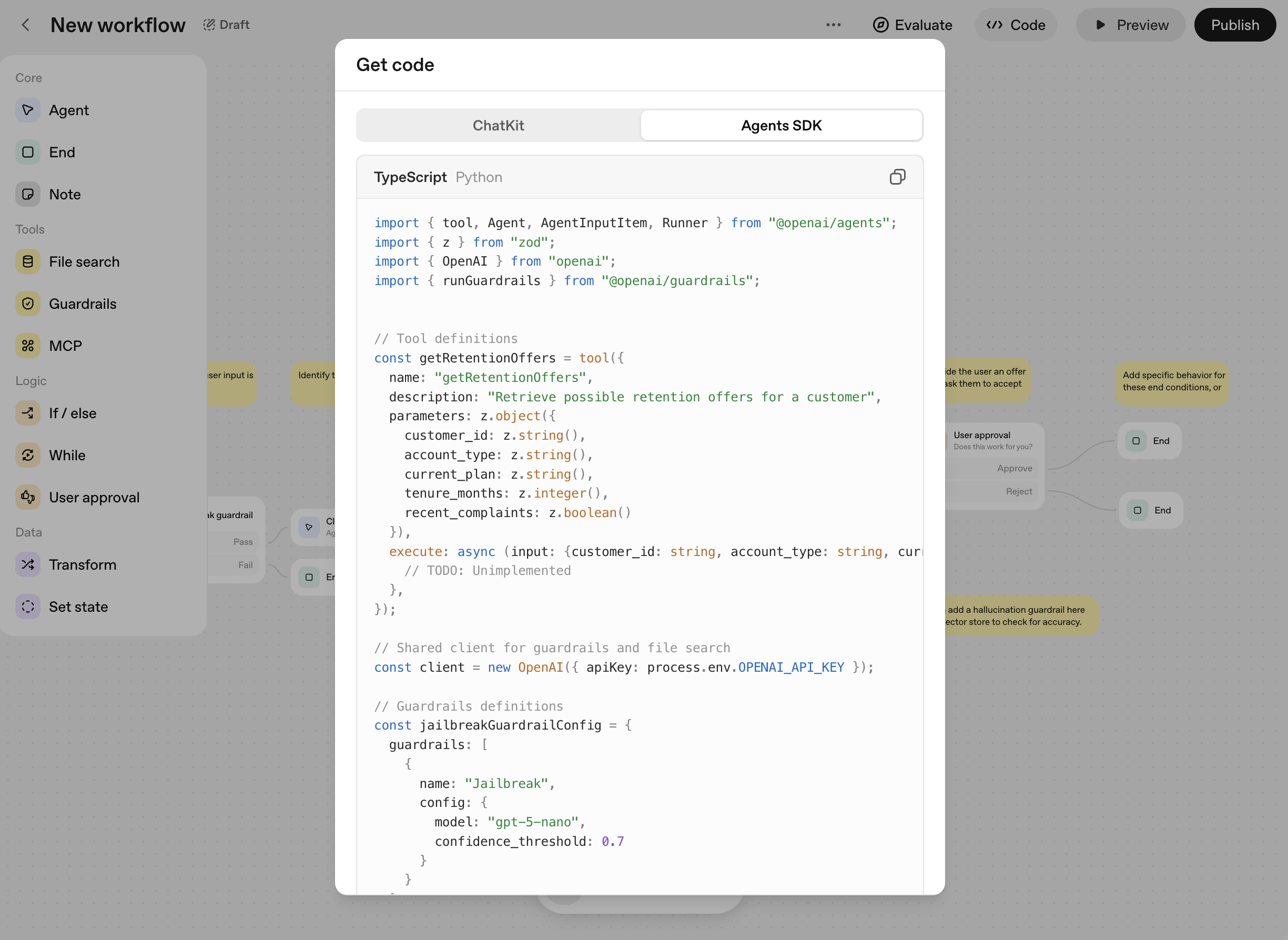
Install Required Packages
Integrate Portkey
model field of your OpenAI Agents SDK code, enter the Portkey Model Slug from Model Catalog. Example: @openai-provider-slug/gpt-5, @anthropic-provider/claude-sonnet-latest.Production Features
1. Enhanced Observability
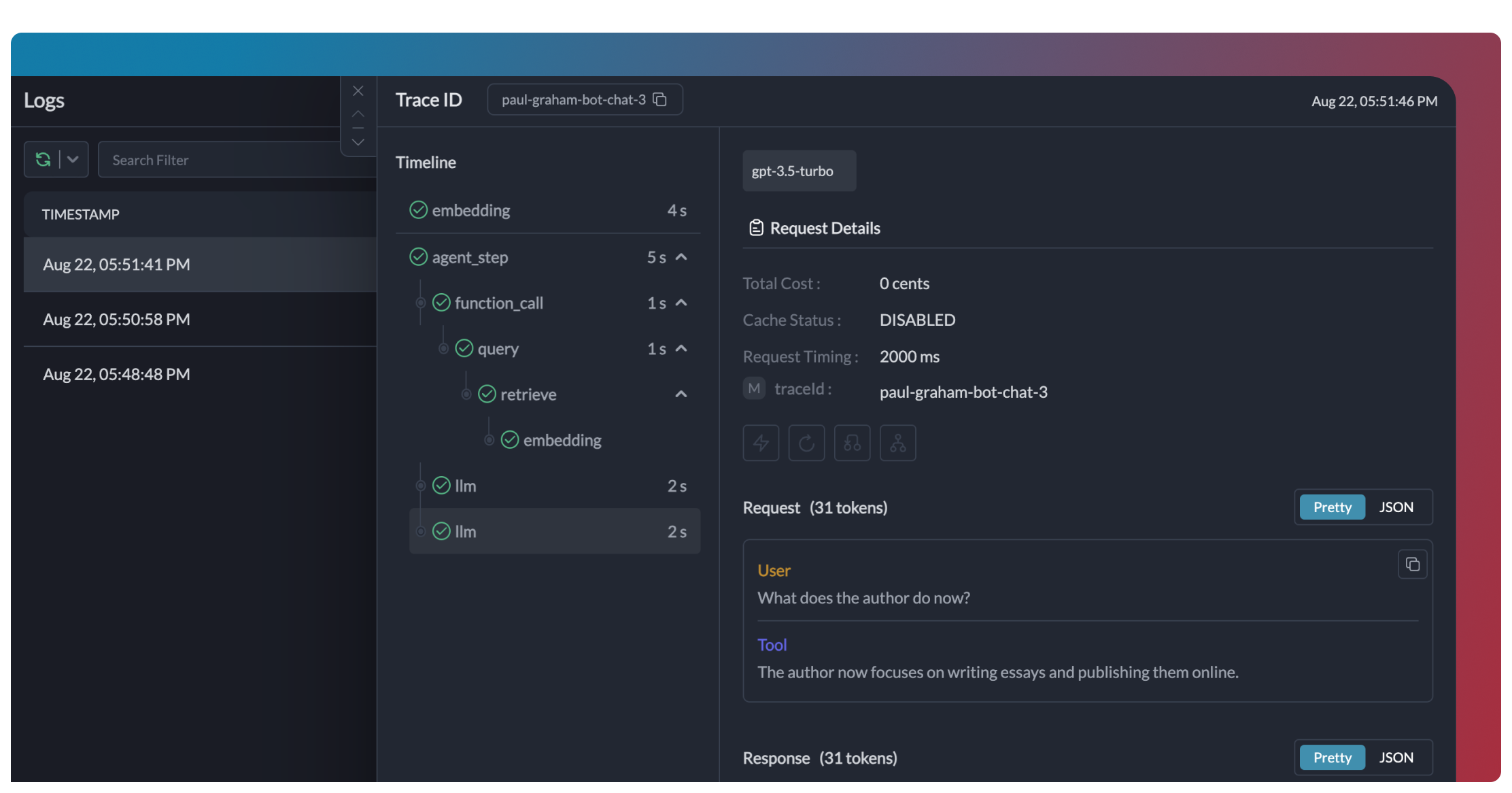
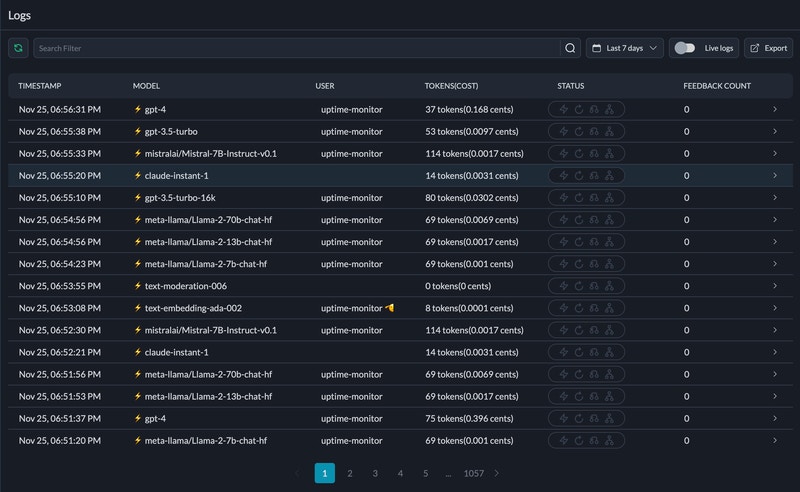
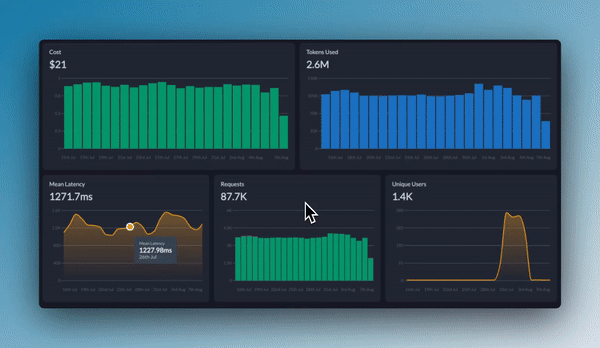
Portkey provides comprehensive observability for your OpenAI Agents, helping you understand exactly what’s happening during each execution.- Traces
- Logs
- Metrics & Dashboards
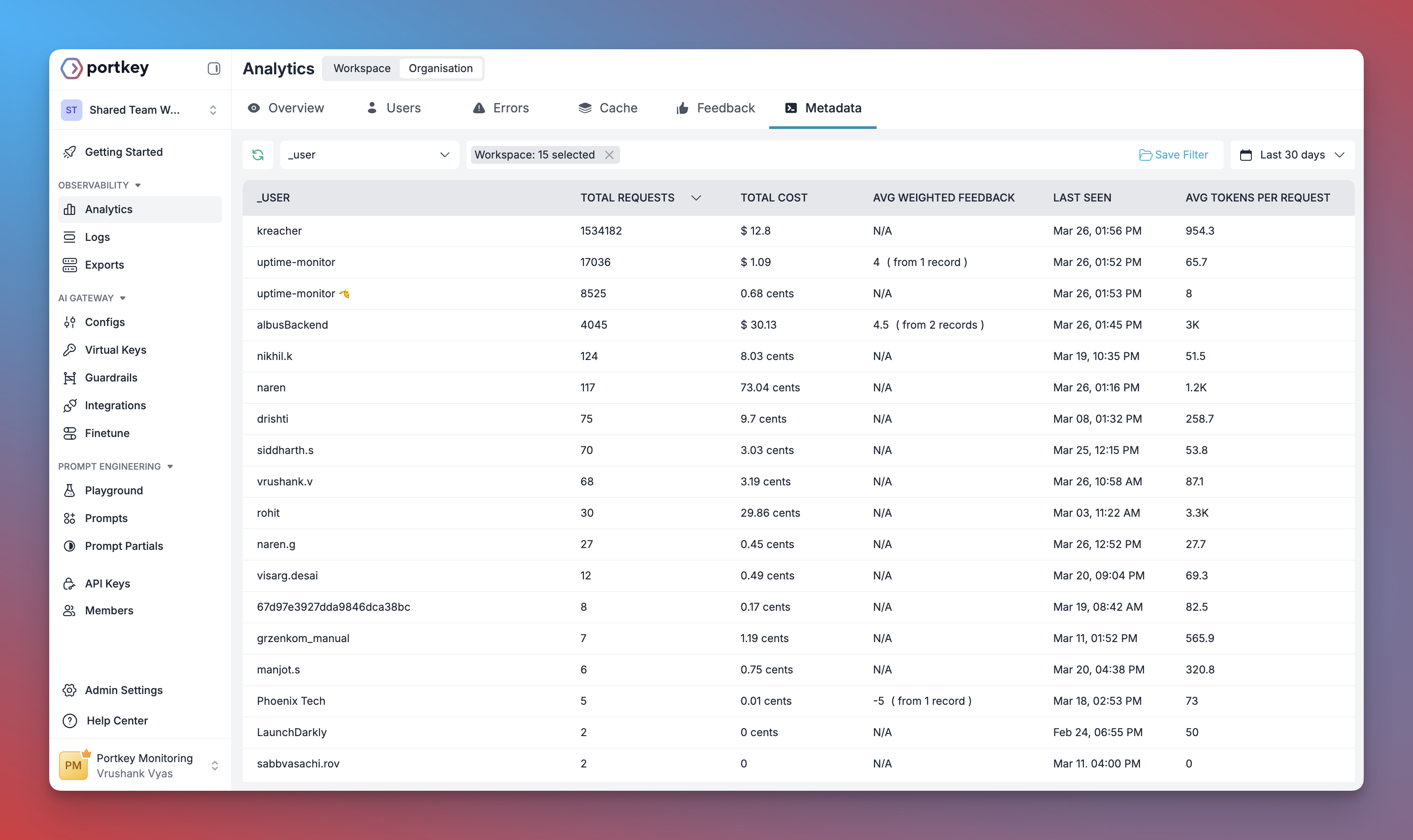
- Metadata Filtering
2. Reliability - Keep Your Agents Running Smoothly
When running agents in production, things can go wrong - API rate limits, network issues, or provider outages. Portkey’s reliability features ensure your agents keep running smoothly even when problems occur. It’s this simple to enable fallback in your OpenAI Agents:Automatic Retries
Request Timeouts
Conditional Routing
Fallbacks
Load Balancing
3. Prompting in OpenAI Agents
Portkey’s Prompt Engineering Studio helps you create, manage, and optimize the prompts used in your OpenAI Agents. Instead of hardcoding prompts or instructions, use Portkey’s prompt rendering API to dynamically fetch and apply your versioned prompts.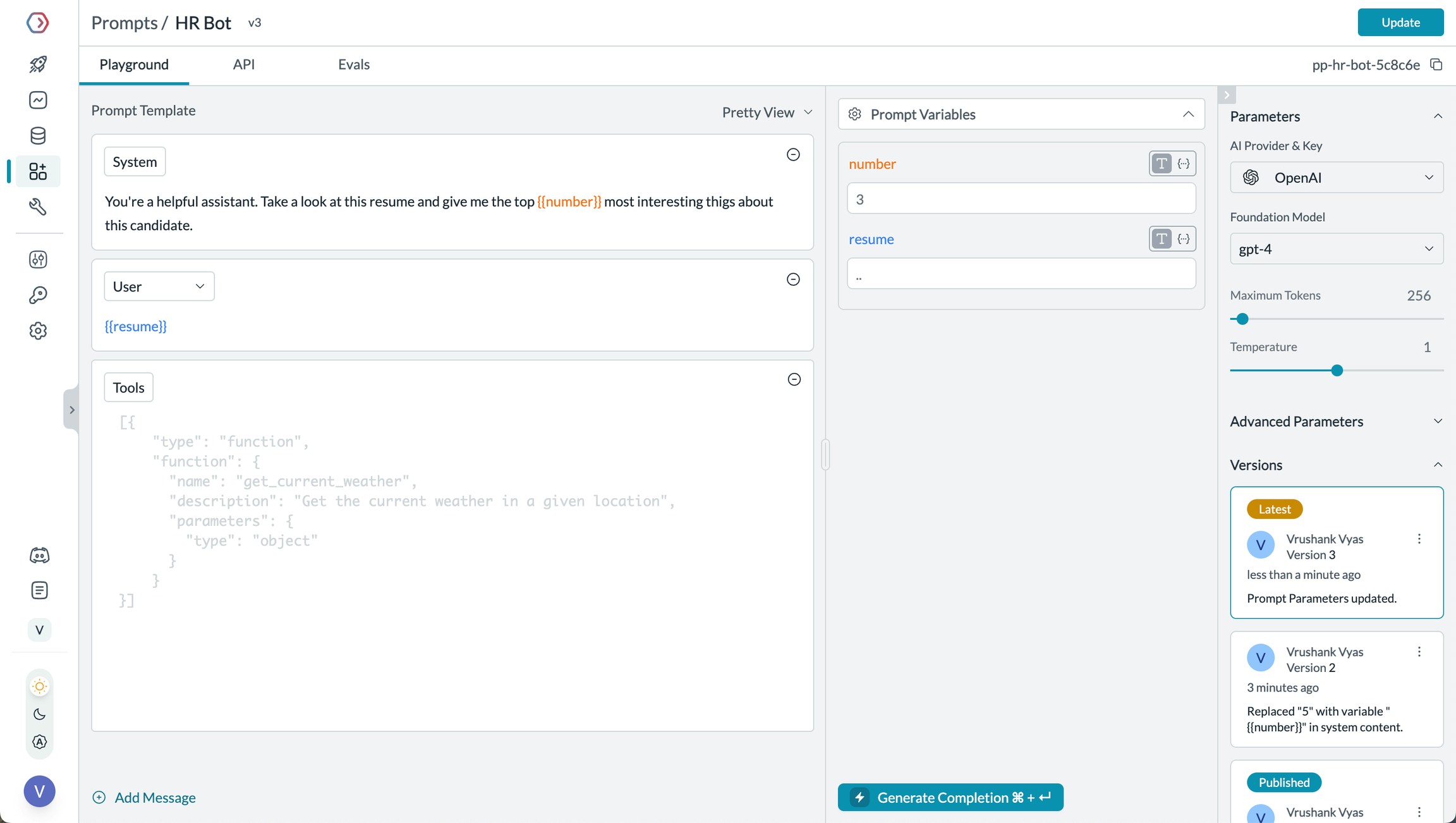
Manage prompts in Portkey's Prompt Library
- Prompt Playground
- Using Prompt Templates
- Prompt Versioning
- Mustache Templating for variables
- Iteratively develop prompts before using them in your agents
- Test prompts with different variables and models
- Compare outputs between different prompt versions
- Collaborate with team members on prompt development
Prompt Engineering Studio
4. Guardrails for Safe Agents
Guardrails ensure your OpenAI Agents operate safely and respond appropriately in all situations. Why Use Guardrails? OpenAI Agents can experience various failure modes:- Generating harmful or inappropriate content
- Leaking sensitive information like PII
- Hallucinating incorrect information
- Generating outputs in incorrect formats
- Detect and redact PII in both inputs and outputs
- Filter harmful or inappropriate content
- Validate response formats against schemas
- Check for hallucinations against ground truth
- Apply custom business logic and rules
Learn More About Guardrails
5. User Tracking with Metadata
Track individual users through your OpenAI Agents using Portkey’s metadata system. What is Metadata in Portkey? Metadata allows you to associate custom data with each request, enabling filtering, segmentation, and analytics. The special_user field is specifically designed for user tracking.
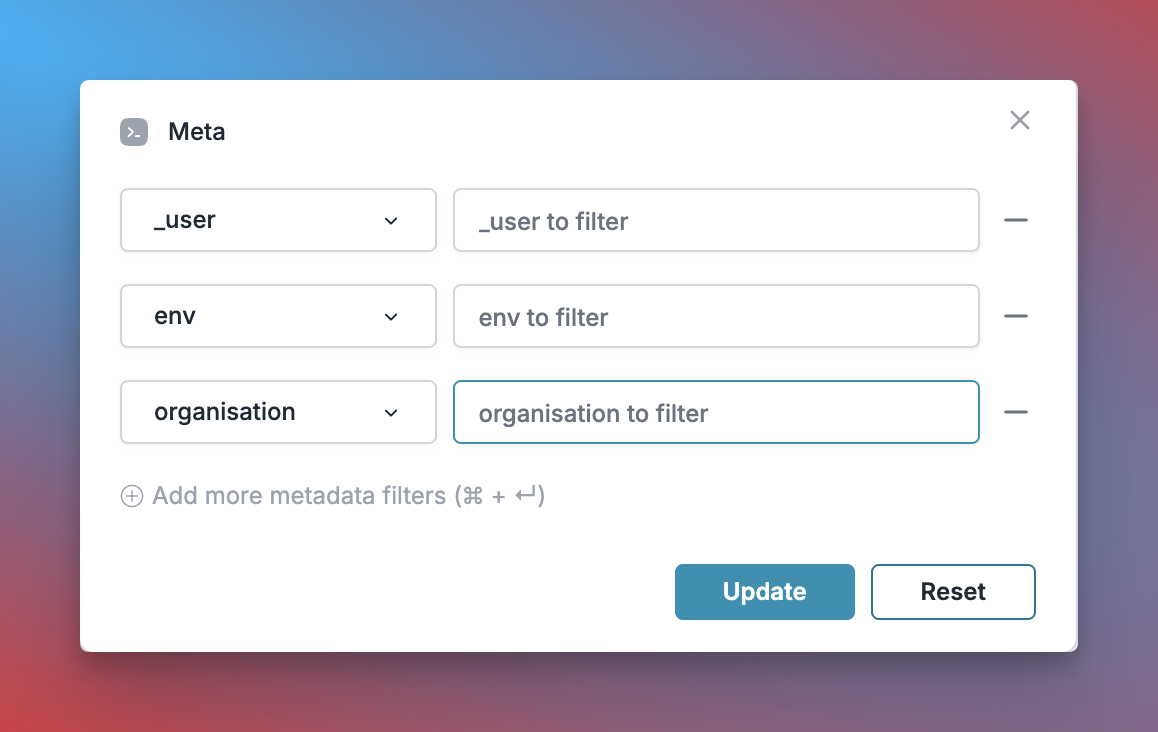
Filter analytics by user
- Per-user cost tracking and budgeting
- Personalized user analytics
- Team or organization-level metrics
- Environment-specific monitoring (staging vs. production)
Learn More About Metadata
6. Caching for Efficient Agents
Implement caching to make your OpenAI Agents agents more efficient and cost-effective:- Simple Caching
7. Model Interoperability
With Portkey, you can easily switch between different LLMs in your OpenAI Agents without changing your core agent logic.- OpenAI (GPT-4o, GPT-4 Turbo, etc.)
- Anthropic (Claude 3.5 Sonnet, Claude 3 Opus, etc.)
- Mistral AI (Mistral Large, Mistral Medium, etc.)
- Google Vertex AI (Gemini 1.5 Pro, etc.)
- Cohere (Command, Command-R, etc.)
- AWS Bedrock (Claude, Titan, etc.)
- Local/Private Models
Supported Providers
Set Up Enterprise Governance for OpenAI Agents
Why Enterprise Governance? If you are using OpenAI Agents inside your organization, you need to consider several governance aspects:- Cost Management: Controlling and tracking AI spending across teams
- Access Control: Managing which teams can use specific models
- Usage Analytics: Understanding how AI is being used across the organization
- Security & Compliance: Maintaining enterprise security standards
- Reliability: Ensuring consistent service across all users
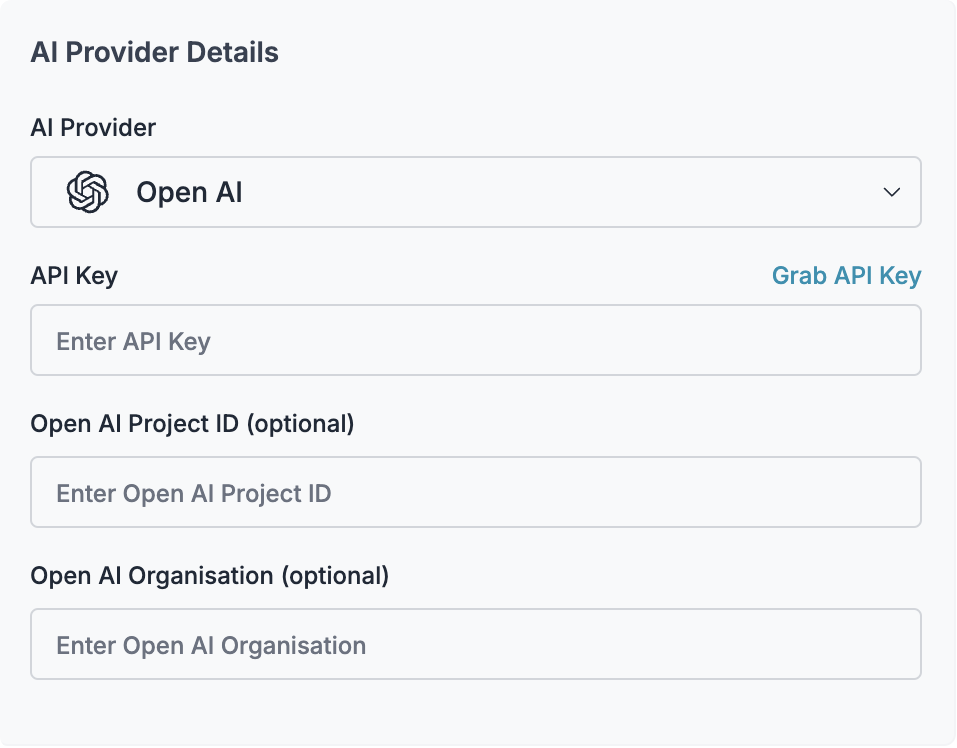
Integrate your LLM
- Budget limits for API usage
- Rate limiting capabilities
- Secure API key storage
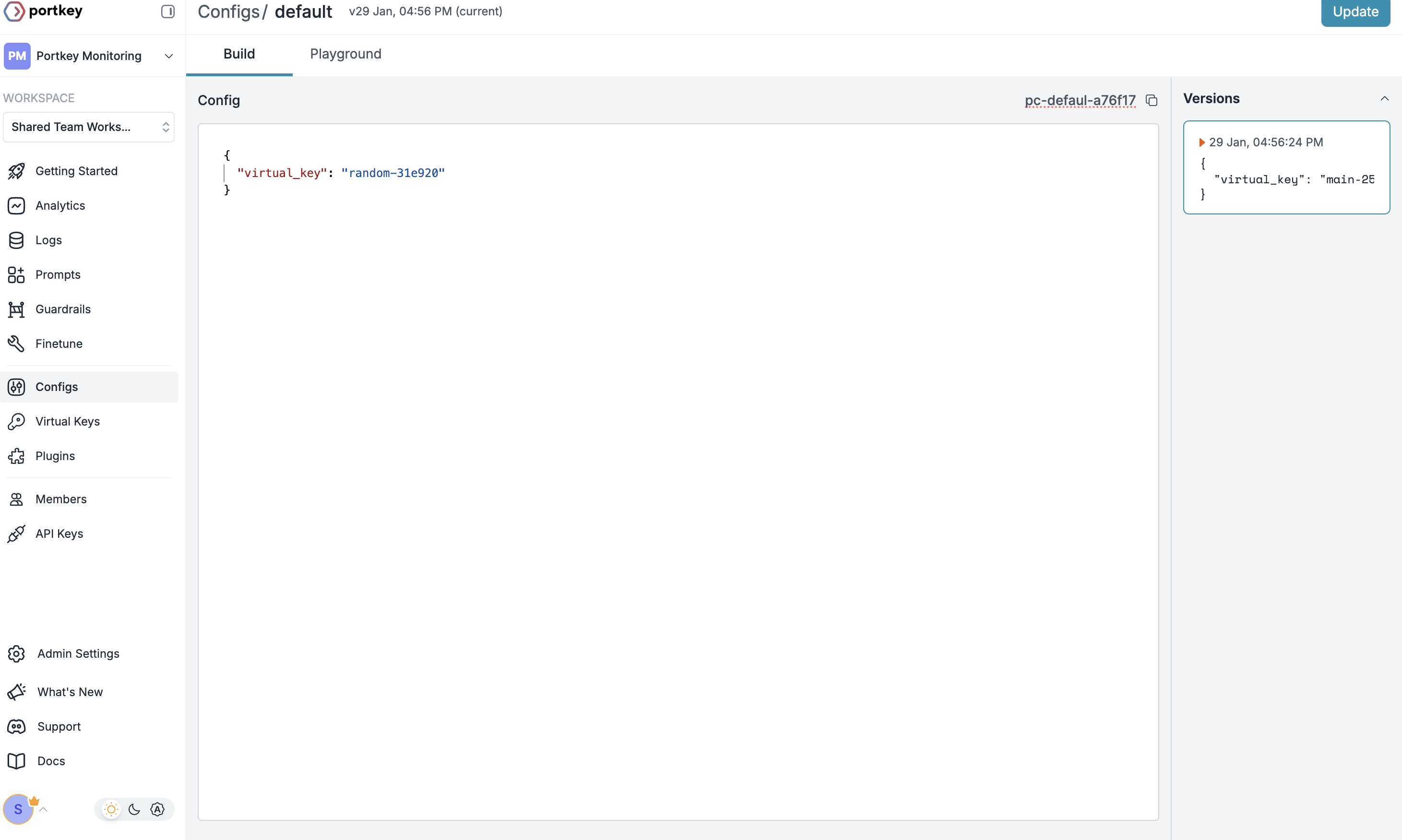
Create Default Config
- Go to Configs in Portkey dashboard
- Create new config with:
- Save and note the Config name for the next step
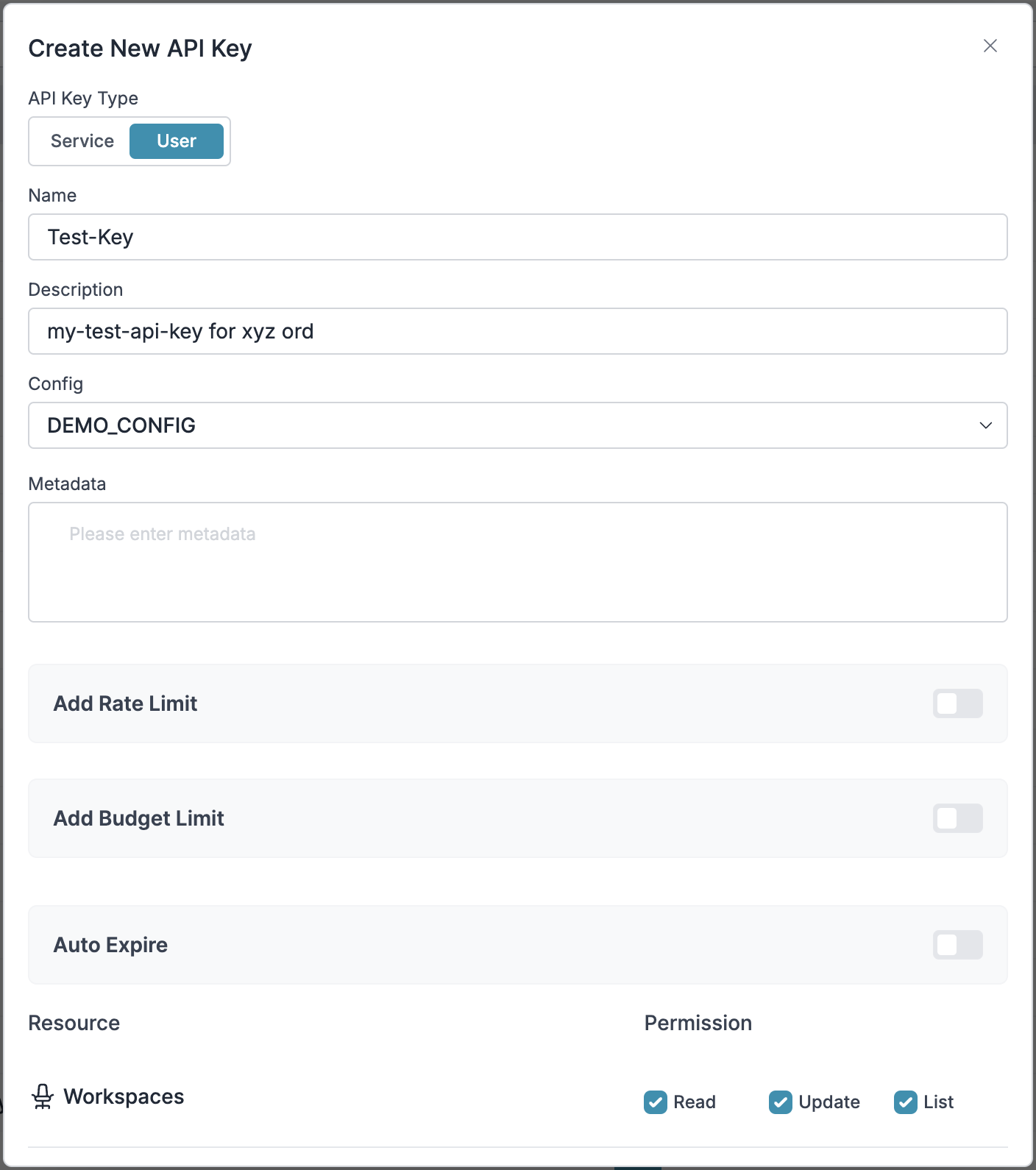
Configure Portkey API Key
- Go to API Keys in Portkey and Create new API key
- Select your config from
Step 2 - Generate and save your API key
Step 1: Implement Budget Controls & Rate Limits
Step 1: Implement Budget Controls & Rate Limits
Step 1: Implement Budget Controls & Rate Limits
Virtual Keys enable granular control over LLM access at the team/department level. This helps you:- Set up budget limits
- Prevent unexpected usage spikes using Rate limits
- Track departmental spending
Setting Up Department-Specific Controls:
- Navigate to Virtual Keys in Portkey dashboard
- Create new Virtual Key for each department with budget limits and rate limits
- Configure department-specific limits
Step 2: Define Model Access Rules
Step 2: Define Model Access Rules
Step 2: Define Model Access Rules
As your AI usage scales, controlling which teams can access specific models becomes crucial. Portkey Configs provide this control layer with features like:Access Control Features:
- Model Restrictions: Limit access to specific models
- Data Protection: Implement guardrails for sensitive data
- Reliability Controls: Add fallbacks and retry logic
Example Configuration:
Here’s a basic configuration to route requests to OpenAI, specifically using GPT-4o:Step 3: Implement Access Controls
Step 3: Implement Access Controls
Step 3: Implement Access Controls
Create User-specific API keys that automatically:- Track usage per user/team with the help of metadata
- Apply appropriate configs to route requests
- Collect relevant metadata to filter logs
- Enforce access permissions
Step 4: Deploy & Monitor
Step 4: Deploy & Monitor
Step 4: Deploy & Monitor
After distributing API keys to your team members, your enterprise-ready OpenAI Agents setup is ready to go. Each team member can now use their designated API keys with appropriate access levels and budget controls. Apply your governance setup using the integration steps from earlier sections Monitor usage in Portkey dashboard:- Cost tracking by department
- Model usage patterns
- Request volumes
- Error rates
Enterprise Features Now Available
OpenAI Agents now has:- Departmental budget controls
- Model access governance
- Usage tracking & attribution
- Security guardrails
- Reliability features
Frequently Asked Questions
How does Portkey enhance OpenAI Agents?
How does Portkey enhance OpenAI Agents?
Can I use Portkey with existing OpenAI Agents?
Can I use Portkey with existing OpenAI Agents?
Does Portkey work with all OpenAI Agents features?
Does Portkey work with all OpenAI Agents features?
How does Portkey handle streaming in OpenAI Agents?
How does Portkey handle streaming in OpenAI Agents?
How do I filter logs and traces for specific agent runs?
How do I filter logs and traces for specific agent runs?
agent_name, agent_type, or session_id to easily find and analyze specific agent executions.Can I use my own API keys with Portkey?
Can I use my own API keys with Portkey?
Resources
OpenAI Agents Docs
Official OpenAI Agents SDK documentation
Agent Examples
Example implementations for various use cases
Book a Demo
Get personalized guidance on implementing this integration